
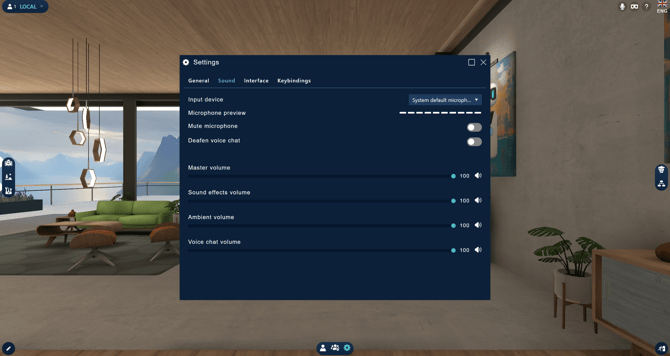
The sound settings interface offers more control and flexibility over your audio experience with enhanced usability in better microphone management, expanded volume controls, and additional audio options.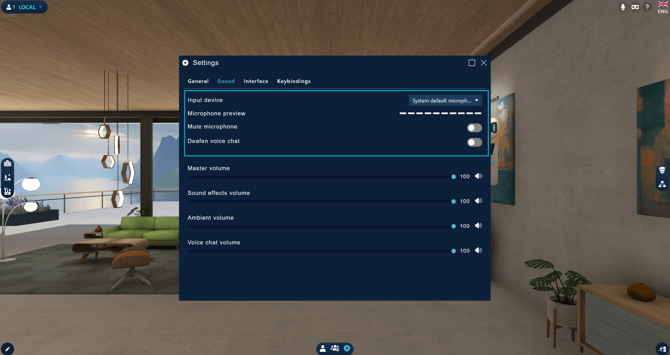
Microphone Controls
-
Input Device Selection: Now allows users to select their preferred microphone, including system default or connected headsets.
-
Microphone Preview: A visual indicator shows microphone activity, helping you confirm it's working properly.
- Mute Microphone Toggle: Instantly disable your mic when needed.
- Deafen Voice Chat Option: Mutes your microphone and turns off all incoming voice chat, ensuring privacy when required.
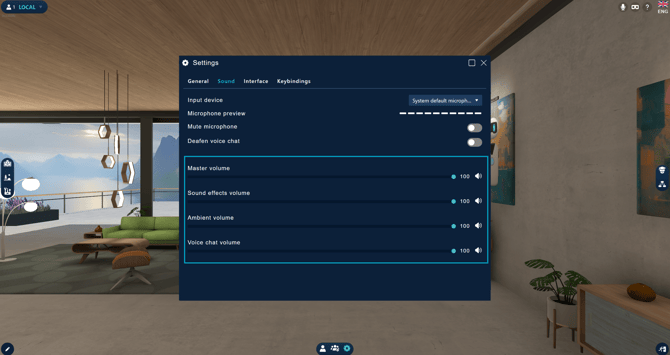
Volume Controls
The sound settings provide individual volume sliders for different audio elements, allowing for a customized sound experience:
- Master Volume: Controls the overall sound in Fynd CORE.
- SFX Volume: Adjusts the volume of interactive objects in the scene.
- Ambience Volume: Manages background noises, such as environmental sounds.
- Voice Chat Volume: Adjusts the volume of other users in voice chat.
